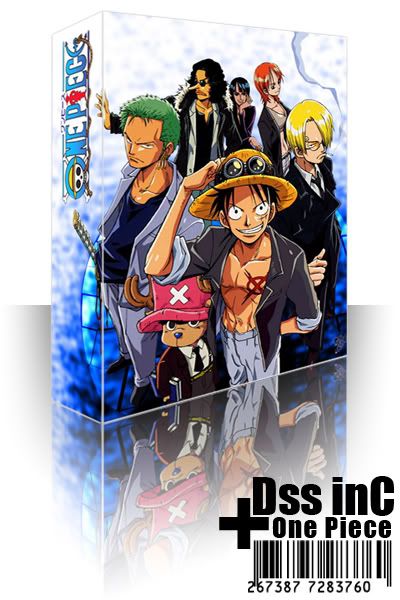
Rakan Ku Menjadi Bahan Eksperimen
hey.. welkam2, ahaks sni ada jualan murah! eehh xdela, tu hanyalah iklan semata2.. disebabkn kecacatan dan kebosanan melanda, maka encik zhafirul telah menjadi eksperimen vector illustrator. gggrr mmg mengambil masa yg agk lma.. sbb nk trace foto gne pen tools, so phm2 jea. dan hasilnya agk memberangsangkn, sy suke.. xtau lah anda. hihi


hasilnya!! lalala.. ku suda berjaya! tp.. mcm ada tertinggal part2 yg penting. hehe
colour palette yg digunakn. using base gray, red, brown
Tutorial: Cross Processing (Photoshop)
simple tutorial was here!! ahaks.. cm gempaq je. actually tutorial ni senang je, tp da de org request. so nk try gek penuhi permintaan. so kali ni tutorial utk cross processing. cross processing ni utk nmpk kn effect foto tu a bit greeny tp still look cool.
open foto yg hendak di edit, utk kali ni.. sy gune foto kwn sy, foto lme time kt youth'08. mael tetyimun.

duplicate kn foto asal dan apply kn gradient map(image > adjustments > gradient map) then click ok.

rendah kn capasity ke 50%.

adjust brightness/contrast(image > adjustments > brightness/contrast), set kn contrast 19. selepas tu, merge kn kedua2 layer.

pergi ke channel tab, tekan pada red channel. set kn brightness/contrast(image > adjustments > brightness/contrast) set kn contrast 25.


tekan pada green channel dan repeat lagi skali brightness/contrast(image > adjustments > brightness/contrast) set kn contrast 25.

tekan kembali ke channel rgb dan lihat hasilnya.
open foto yg hendak di edit, utk kali ni.. sy gune foto kwn sy, foto lme time kt youth'08. mael tetyimun.

duplicate kn foto asal dan apply kn gradient map(image > adjustments > gradient map) then click ok.

rendah kn capasity ke 50%.

adjust brightness/contrast(image > adjustments > brightness/contrast), set kn contrast 19. selepas tu, merge kn kedua2 layer.

pergi ke channel tab, tekan pada red channel. set kn brightness/contrast(image > adjustments > brightness/contrast) set kn contrast 25.


tekan pada green channel dan repeat lagi skali brightness/contrast(image > adjustments > brightness/contrast) set kn contrast 25.

tekan kembali ke channel rgb dan lihat hasilnya.

Realistic Orb (Illustrator)
Tutorial: Design Pill Button
hey all, kali ni start ngan pill button. mostly user guna utk button. so we
all start with something easy. create new file 300x150 dan background: putih. create new layer dan gunakn rectangular / elliptical marquee tool dan set kn fill: 0%


selepas set kn fill td 0%, seharusnya shape yg di'create' td akn invisible tp
xpe.. ianya akn muncul selepas seting2 pada layer style diisikn. click pada
shape td dan open layer style (layer > layer style). click pada drop shadow dan
set kn ianya seperti foto di bwh.

then step seterusnya inner glow. just follow je setting bwh ni

then click pada bevel and emboss dan follow setting di bwh. setting gloss
contour boleh di apply pada side curve, click the arrow down dan apply curve
like mine.
tips: jika ingin ubahkn effect pada glass ni, kt setting ni la the main place
utk difokuskn. depth setting bole di ubah dr sharpen ataupn softer the lighting
dgn naikkn atau turunkn value. ataupn try setting kt area gloss contour, ianya
akn 'tight'kn effect kt area2 curves. then naikkn size dan soften settings,
ianya akn menyebabkn pill kelihatan smoother atau lebih berkilat, tp ingat.. it
just tips. dont overdo it

dlm bevel and emboss td ade contour (subsection). try cari curves dan apply
setting yg sama seperti foto di bwh. try playing around with the setting if you
like, tp effect mmg sgt la unpredictable and the best just biarkn je setting ni.

ini utk final step, click satin section dan apply settings di bwh. ianya akn
mencipta light diffraction effect dlm pill glass td. apply contour yg sama
seperti foto di bwh.

press ok, dan lihat sdri hasil td.

pill glass ni akn maintain transparent. selamat mencuba
all start with something easy. create new file 300x150 dan background: putih. create new layer dan gunakn rectangular / elliptical marquee tool dan set kn fill: 0%


selepas set kn fill td 0%, seharusnya shape yg di'create' td akn invisible tp
xpe.. ianya akn muncul selepas seting2 pada layer style diisikn. click pada
shape td dan open layer style (layer > layer style). click pada drop shadow dan
set kn ianya seperti foto di bwh.

then step seterusnya inner glow. just follow je setting bwh ni

then click pada bevel and emboss dan follow setting di bwh. setting gloss
contour boleh di apply pada side curve, click the arrow down dan apply curve
like mine.
tips: jika ingin ubahkn effect pada glass ni, kt setting ni la the main place
utk difokuskn. depth setting bole di ubah dr sharpen ataupn softer the lighting
dgn naikkn atau turunkn value. ataupn try setting kt area gloss contour, ianya
akn 'tight'kn effect kt area2 curves. then naikkn size dan soften settings,
ianya akn menyebabkn pill kelihatan smoother atau lebih berkilat, tp ingat.. it
just tips. dont overdo it

dlm bevel and emboss td ade contour (subsection). try cari curves dan apply
setting yg sama seperti foto di bwh. try playing around with the setting if you
like, tp effect mmg sgt la unpredictable and the best just biarkn je setting ni.

ini utk final step, click satin section dan apply settings di bwh. ianya akn
mencipta light diffraction effect dlm pill glass td. apply contour yg sama
seperti foto di bwh.

press ok, dan lihat sdri hasil td.

pill glass ni akn maintain transparent. selamat mencuba

Tips: Cara Menggunakn Modify in Photoshop
hey everyone! kali ni start kelas baru, tp just tips2 yg mungkin berguna. modify (select > modify). modify ni bole digunakn selepas mggunakn select tools sperti tips yg sebelum ni pernah diterangkn. modify terbhagi kepada 5bhagian. border, smooth, expand, contract dan feather.

border
border ni xdela se'perfect' stroke (layer style > stroke) tp still bole
digunakn utk create simple n thin border

bwh ni contoh selepas di'border'kn

smooth
smooth lebih byk digunakn utk edge. try it if u want to know about it

bwh ni contoh smooth

expand
expand lebih byk digunakn utk meluaskn area yg di'select

bwh ni contoh foto yg suda di'expand

contract
contract digunakn utk memperkecilkn area yg hendak di'select

bwh ni contoh contract

feather
it kinda look like smooth (select > modify > smooth) tp.. ianya
mberikn area select kepada effect fade

foto bwh ni kelihatan mirip seperti smooth tp

selepas di'fill'kn colour dlm area select td, ianya kelihatan seperti foto di
bwh. berbeza bkn?

so, that all for now.. hav a nice day. chiow

border
border ni xdela se'perfect' stroke (layer style > stroke) tp still bole
digunakn utk create simple n thin border

bwh ni contoh selepas di'border'kn

smooth
smooth lebih byk digunakn utk edge. try it if u want to know about it

bwh ni contoh smooth

expand
expand lebih byk digunakn utk meluaskn area yg di'select

bwh ni contoh foto yg suda di'expand

contract
contract digunakn utk memperkecilkn area yg hendak di'select

bwh ni contoh contract

feather
it kinda look like smooth (select > modify > smooth) tp.. ianya
mberikn area select kepada effect fade

foto bwh ni kelihatan mirip seperti smooth tp

selepas di'fill'kn colour dlm area select td, ianya kelihatan seperti foto di
bwh. berbeza bkn?

so, that all for now.. hav a nice day. chiow
Tutorial: Design Personal 3D Box
hey all, kali ni tutorial utk design our own 3D box menggunakn photoshop. ianya nmpk lebih real dan boleh digunakn utk kegunaan sdri.

utk permulaan, kite design dlu box art tu dan pasti kn setiap side utk design tu wujud di berlainan layer.

kali ni start dgn transform design kite td. pastikn layer2 font sudah di rasterize (layer > rasterize > type) dan layer hanya wujud 2layer: sideA dan sideB.

gunakn perspective (edit > transform > perspective) utk memudahkn top dan bottom corners foto kelihatan sama.

perspective ni akan wt design td kelihatan pelik, so slah satu cara adalah adjust je scale (edit > transform > scale | ctrl + t).

utk sideA setel, so ulang balik cara transform td utk sideB. sehingga ianya kelihatan seperti foto di bwah:

design box suda siap! tym for touch-ups.
----------------------------------------
skrg ni create new layer dan letakkn ats background layers. gunakn rectangular marquee tool (M) dan select 1/3 area bwh image. gunakn gradient tool (G) dan choose radial gradient. edit kn gradient tu dr color terang (putih) dan hujung transparent. drag gradient tool tu kt layer yg baru di create td. try beberapa byk yg bole utk result yg cool. seperti foto di bwh:

kali ni, cara2 utk mbuat reflection utk box td.
duplicate layer sideA dan sideB td dan flip vertical (edit > transform > flip vertical) kn ia. turunkn box yg di duplicate td je bwh kotak 3D. ianya akn kelihatan seperti foto di bwh:

gunakn transform > skew (pada duplicate layer sideA atau sideB) drag area ujung dr layer tersebut supaya kelihatan seperti foto di bwh:

reflection sudah kelihatan tapi nmpk kecacatan, so salah satu cara ialah membuatkn ianya fade off sedikit. salah satu cara adalah mggunakn layer mask.
select layer reflection (sideA atau sideB) dan tekan mask layer.

gunakn gradient tool (G) dan pilih linear gradient. set gradient tool color itam dan hujung putih. drag gradient tool tu kt mask layer td. seperti foto di bwh:

dan siap dh 3D box! thanks for reading..

utk permulaan, kite design dlu box art tu dan pasti kn setiap side utk design tu wujud di berlainan layer.

kali ni start dgn transform design kite td. pastikn layer2 font sudah di rasterize (layer > rasterize > type) dan layer hanya wujud 2layer: sideA dan sideB.

gunakn perspective (edit > transform > perspective) utk memudahkn top dan bottom corners foto kelihatan sama.

perspective ni akan wt design td kelihatan pelik, so slah satu cara adalah adjust je scale (edit > transform > scale | ctrl + t).

utk sideA setel, so ulang balik cara transform td utk sideB. sehingga ianya kelihatan seperti foto di bwah:

design box suda siap! tym for touch-ups.
----------------------------------------
skrg ni create new layer dan letakkn ats background layers. gunakn rectangular marquee tool (M) dan select 1/3 area bwh image. gunakn gradient tool (G) dan choose radial gradient. edit kn gradient tu dr color terang (putih) dan hujung transparent. drag gradient tool tu kt layer yg baru di create td. try beberapa byk yg bole utk result yg cool. seperti foto di bwh:

kali ni, cara2 utk mbuat reflection utk box td.
duplicate layer sideA dan sideB td dan flip vertical (edit > transform > flip vertical) kn ia. turunkn box yg di duplicate td je bwh kotak 3D. ianya akn kelihatan seperti foto di bwh:

gunakn transform > skew (pada duplicate layer sideA atau sideB) drag area ujung dr layer tersebut supaya kelihatan seperti foto di bwh:

reflection sudah kelihatan tapi nmpk kecacatan, so salah satu cara ialah membuatkn ianya fade off sedikit. salah satu cara adalah mggunakn layer mask.
select layer reflection (sideA atau sideB) dan tekan mask layer.

gunakn gradient tool (G) dan pilih linear gradient. set gradient tool color itam dan hujung putih. drag gradient tool tu kt mask layer td. seperti foto di bwh:

dan siap dh 3D box! thanks for reading..

Tips: Define Pattern in Photoshop
define pattern digunakn utk mempermudah sesuatu editing. de certain way care2 utk menggunakn nye. but sometime pattern yg hendak digunakan tidak menepati cita rase pengguna. so salah satu care adalah kite define pattern tu sdri.
contoh kali ni utk wt effect line camera cctv. start ngan pilih foto yg nk edit.
utk define pattern.. create new files, bersaiz width = 1px, height = 5px, background contents = transparent. utk lebih mudah, besarkn view to fit to screen (ctrl + 0).
used pencil tool n pilih diameter yg paling kecil. n pasti kn anda wt seperti gamba di bwh
then start utk define pattern, edit >> define pattern.
kembali ke foto yg hendak di edit, then kali ni mule nye proses utk isi pattern yg da di create td kt foto. tp kne pasti kn fill kn pattern pada new layer bkn pada foto yg hendak di edit
pilih pattern yg di creat td.. n try utk kelihatan seperti view di cctv
after all touchup, foto td kelihatan seperti di lihat di cctv.
finish
Subscribe to:
Posts (Atom)